How to use the AI Clean Up tool in iOS 27 to remove unwanted objects in iPhone Photos
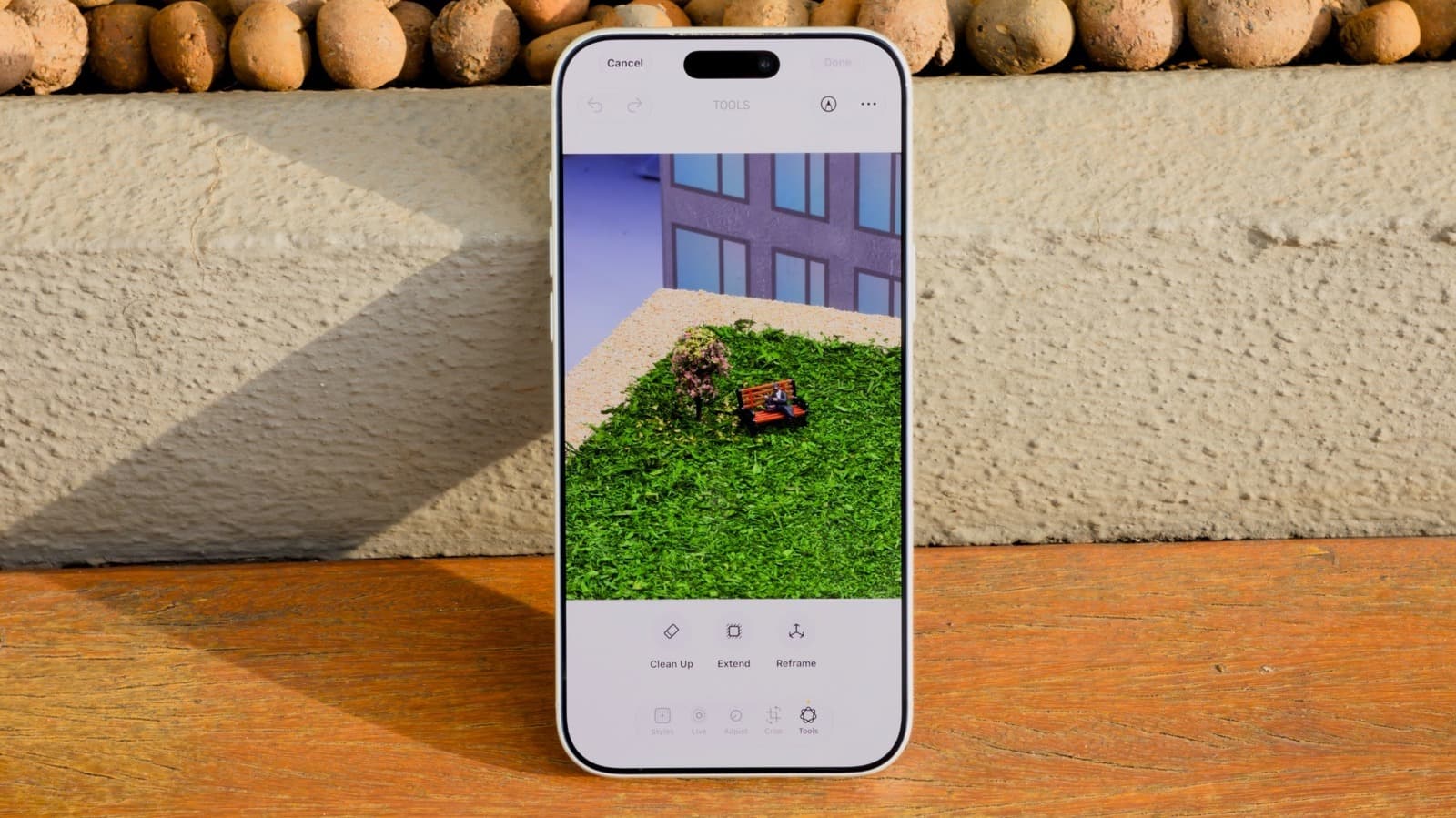
Apple's Clean Up feature has been part of the iPhone Photos app since iOS 18, offering a straightforward way to remove unwanted objects - photobombers, stray wires, litter - from images without needing a third-party editor. With iOS 27, Apple has expanded and refined the tool, building on the generative AI foundation it established in earlier versions.
The core mechanic remains familiar: users select the Clean Up tool within the Photos edit interface, then tap or brush over the element they want removed. The underlying model analyzes the surrounding pixels and reconstructs the area in a way that blends with the rest of the image. What changes in iOS 27 appears to be improvements in accuracy, handling of complex backgrounds, and possibly the size or type of objects the tool can convincingly erase.
This kind of on-device generative editing matters for a few reasons. Because the processing happens locally rather than being sent to a server, it works without an internet connection and raises fewer privacy concerns around personal photos. Apple has leaned into on-device AI as a differentiator, and Clean Up is one of the more practical expressions of that approach - useful for everyday photography rather than niche creative workflows.
For iPhone users who haven't explored the feature yet, or those upgrading from an older iOS version, Engadget's guide covers the step-by-step process for accessing and using Clean Up in iOS 27. It's a relatively low-friction edit that can meaningfully improve a photo in seconds, which puts it in a different category from more involved AI editing tools that require significant user input or technical familiarity.